
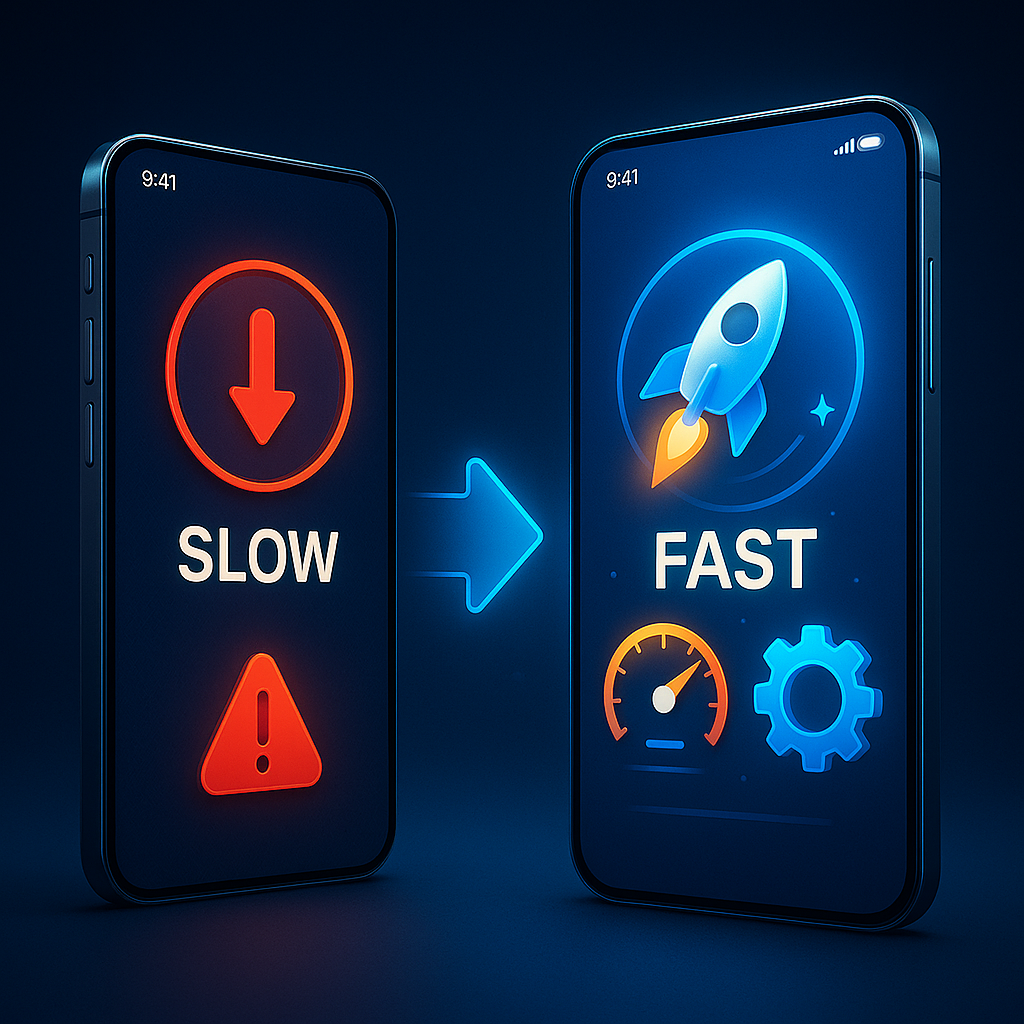
It doesn’t matter if your phone is brand new, mid-range, or old—over time, it may start slowing down. Apps take longer to open, the phone freezes, lags during gaming, and sometimes crashes completely. This happens due to app updates, storage issues, background processes, and aging hardware.
The good news is:
You can make your Android phone faster with simple steps.
This 2025 guide covers everything you need to boost your phone speed, improve performance, and make it run like new again.
Let’s get started!
1. Restart Your Phone Regularly (Simple but Effective)
Restarting clears temporary files, closes background apps, and refreshes the system.
✔ Restart your phone once daily or at least 3–4 times a week for better performance.
2. Clear App Cache (Instant Speed Improvement)
Cache builds up over time and slows apps down.
✔ To clear cache:
- Settings
- Apps
- Select an app
- Storage
- Tap Clear Cache
Clear cache from heavy apps like:
- TikTok
- Chrome
- Snapchat
- YouTube
This can increase speed immediately.
3. Free Up Storage Space
When your storage is almost full, your phone becomes slow.
Free storage by:
✔ Deleting large downloads
✔ Clearing WhatsApp junk
✔ Backing up photos to Google Photos
✔ Removing duplicate files
Aim to keep at least 20–30% free storage.
4. Uninstall or Disable Unused Apps
Many phones have 50–100 apps installed, but you may only use 10–20.
Delete apps you don’t use.
Check unused apps:
Settings → Apps → Sort by Last Used
Removing useless apps reduces background usage and increases speed.
5. Turn Off Auto-Sync for Unnecessary Apps
Auto-sync constantly runs in the background.
Turn it off for apps like:
❌ Facebook
❌ Twitter
❌ Google Drive (if not needed)
❌ Email apps you don’t use
This frees RAM and reduces lag.
6. Update Your Apps and System
Updates include performance fixes and security patches.
✔ Go to Play Store
✔ Tap Manage Apps
✔ Update all
Also check for:
Settings → Software Update
Updates can speed up your device significantly.
7. Disable Animations (Makes Your Phone Feel Faster)
Animations make your phone look nice but slow it down.
✔ To disable animations:
- Enable Developer Options
(Settings → About phone → Tap Build Number 7 times) - Developer Options →
- Window animation scale → Set to 0.5 or Off
- Transition animation scale → 0.5 or Off
- Animator duration scale → 0.5 or Off
Your phone will feel twice as fast.
8. Use Lite Apps Instead of Heavy Apps
Heavy apps slow down low-end phones.
Replace them with lite versions:
| Heavy App | Lite Version |
|---|---|
| Facebook Lite | |
| Messenger | Messenger Lite |
| TikTok | TikTok Lite |
| Instagram Lite | |
| Chrome | Opera Mini |
Lite apps use less RAM and run much faster.
9. Disable Background Apps
If too many apps run in the background, the phone slows down.
✔ Go to
Settings → Apps → Background Restriction
Block apps you don’t need running in the background.
Apps like Facebook, Snapchat, and Instagram consume a lot of RAM.
10. Remove Live Wallpapers & Heavy Themes
Live wallpapers and fancy themes consume:
- Battery
- RAM
- CPU
- GPU
Use a simple wallpaper and lightweight theme.
You will notice immediate improvement.
11. Turn Off Bluetooth, NFC, and GPS When Not in Use
These background services drain battery and slow things down.
Keep them off unless you need them.
12. Use Files by Google to Clean Junk
Files by Google is one of the safest and most effective cleaners.
It removes:
✔ Junk files
✔ Duplicate files
✔ Temporary data
✔ Hidden trash
It increases speed and frees storage.
13. Manage Auto-Start Apps
Some apps automatically start when you turn on your phone.
Disable auto-start for:
- Telegram
- Banking apps
- Shopping apps
This reduces startup lag.
14. Reset App Preferences
If your phone is lagging due to corrupted settings:
Settings → Apps → Reset App Preferences
This fixes hidden problems without deleting data.
15. Turn Off Battery Optimization for Important Apps
Some apps lag because battery optimization restricts them.
Disable optimization for:
✔ WhatsApp
✔ Messenger
✔ Telegram
✔ Banking apps
This makes them run smoothly.
16. Remove Malware or Problematic Apps
If your phone suddenly becomes slow:
✔ Uninstall suspicious apps
✔ Look for apps installed without your permission
✔ Use Play Protect to scan your phone
Go to:
Play Store → Play Protect → Scan
17. Reset Your Phone (Last Option)
If nothing works, a factory reset will refresh your phone.
Warning:
Back up your data first.
A reset removes:
✔ Junk
✔ Virus
✔ Errors
✔ Unwanted apps
Your phone becomes fast again.
Bonus Tips for Gaming Performance
✔ Lower graphics settings
✔ Turn on airplane mode (offline games)
✔ Close background apps
✔ Use “Game Mode” if your phone has it
✔ Keep your phone cool and avoid overheating
Signs Your Phone Needs Optimization
- Apps take long to open
- Phone freezes often
- Keypad or screen lags
- Browsing becomes slow
- Games stutter
- Phone overheats
- Storage always full
If you experience any of these, follow the methods above.
Why Phones Slow Down (2025)
✔ Too many installed apps
✔ Full storage
✔ Old battery
✔ Heavy social media apps
✔ Outdated software
✔ Background syncing
✔ Malware
✔ Overheating
✔ Aged hardware
Good news: most can be fixed.
My Final Thoughts
Your Android phone doesn’t have to remain slow. With the right steps, you can make it:
✔ Faster
✔ Smoother
✔ More responsive
✔ Better for gaming
✔ Longer-lasting
By clearing cache, freeing storage, uninstalling heavy apps, disabling background processes, and optimizing settings, your phone will feel new again—even in 2025.
Top Quick Fixes:
Use lite apps
Clear cache
Free storage
Restart regularly
Disable animations
Delete unused apps