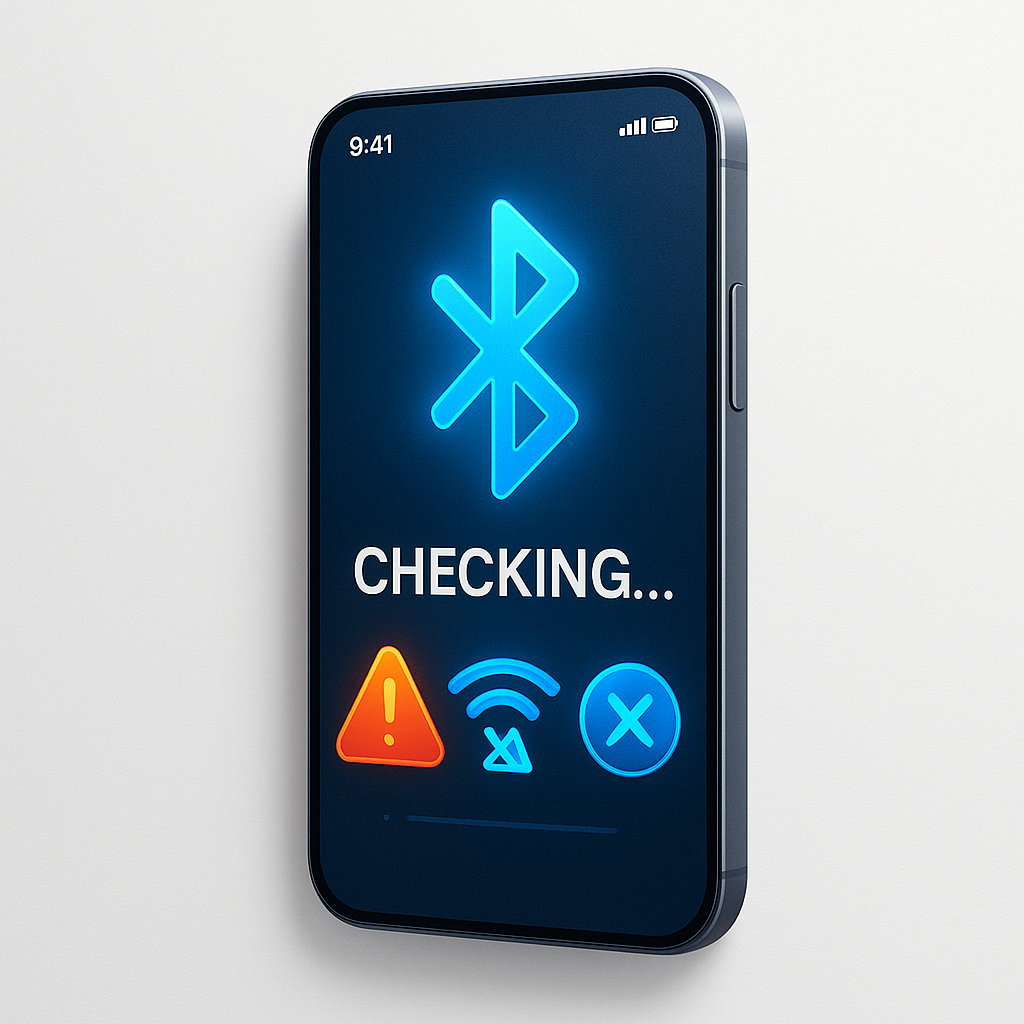
Bluetooth is an essential feature for connecting wireless earbuds, smartwatches, speakers, cars, and other devices. But sometimes Bluetooth refuses to work — it doesn’t connect, disconnects often, or can’t find devices.
These issues are very common in both Android and iPhone.
The good news is:
You can fix Bluetooth problems quickly with a few simple steps.
This 2025 guide covers all the working solutions you need.
Let’s begin.
1. Turn Bluetooth Off and On Again
This is the simplest and most effective first step.
✔ Turn Bluetooth OFF
✔ Wait 5 seconds
✔ Turn it ON again
This refreshes the Bluetooth radio and fixes temporary glitches.
2. Restart Your Phone
Restarting your phone clears temporary system errors.
It helps when:
✔ Bluetooth doesn’t turn on
✔ Devices don’t appear
✔ Pairing keeps failing
Restarting fixes many hidden Bluetooth issues instantly.
3. Restart the Bluetooth Device
Sometimes the problem is not your phone — it’s the device you’re connecting.
Restart your:
- Earbuds
- Headphones
- Speaker
- Smartwatch
- Bluetooth car system
Most have a reset or power off button.
4. Remove Old Paired Devices
Your phone might be confused by too many saved Bluetooth devices.
✔ Remove old devices:
Android & iPhone:
Settings → Bluetooth → Paired Devices → Tap “Forget”
Remove devices you no longer use.
5. Make Sure the Device Is in Pairing Mode
Most devices need to be put into pairing mode manually.
Examples:
- Earbuds: Long press the side button
- Speaker: Press and hold Bluetooth button
- Smartwatch: Open Bluetooth settings
If the device isn’t in pairing mode, your phone cannot find it.
6. Turn ON Location Services (Android)
On many new Android phones, Bluetooth device discovery requires location to be enabled.
✔ Turn it on:
Settings → Location → Enable
This allows apps to scan for nearby devices.
7. Update Your Phone Software
Bluetooth bugs are often fixed in software updates.
✔ Update Android:
Settings → System → Software Update
✔ Update iPhone:
Settings → General → Software Update
Keeping your phone updated improves Bluetooth compatibility.
8. Reset Network Settings
This solution fixes 90% of Bluetooth problems.
✔ Android:
Settings → System → Reset options → Reset WiFi, Mobile & Bluetooth
✔ iPhone:
Settings → General → Transfer or Reset → Reset → Reset Network Settings
This resets:
✔ Bluetooth connections
✔ WiFi networks
✔ Mobile settings
✔ Paired devices
Your phone becomes fresh again.
9. Check Bluetooth Distance and Obstacles
Bluetooth works best within 5 – 10 meters.
Avoid:
❌ Thick walls
❌ Metal barriers
❌ Closed doors
❌ Too many electronics
Distance or obstacles can cause disconnection.
10. Check Battery Level of the Device
Bluetooth devices stop pairing when low on battery.
✔ Charge your earbuds or speaker
✔ Try connecting again
Some headphones refuse to enter pairing mode when the battery is below 10%.
11. Turn Off Battery Saver Mode
Battery saver restricts Bluetooth on many phones.
✔ Turn it off:
Settings → Battery → Battery Saver → OFF
After disabling it, try connecting again.
12. Disable Airplane Mode
Airplane mode disables Bluetooth on some phones.
Check if it is ON:
✔ Turn it OFF
✔ Bluetooth will work normally
13. Remove Bluetooth Interference
Other devices may interfere with your Bluetooth connection.
Keep your phone away from:
- Microwaves
- Routers
- Other Bluetooth devices
- Wireless chargers
Too many signals can cause pairing problems.
14. Check App Permissions
Some apps need Bluetooth permission to connect.
✔ Check permissions:
Settings → Apps → Select App → Permissions → Allow Bluetooth
This is required for smartwatches and fitness bands.
15. Reset the Bluetooth Accessory
Many accessories have a factory reset method.
Examples:
- AirPods: Press and hold the button on the case
- Headphones: Hold volume + power button
- Speakers: Press reset button on back
Resetting clears old pairing data.
16. Keep Your Bluetooth Device Updated
Some devices like smartwatches and earbuds receive firmware updates.
Update using:
✔ Companion app
✔ Manufacturer’s official tool
This improves connection stability.
17. Try Connecting to Another Phone
This helps you identify where the problem is.
✔ If it works on another phone → Your phone has an issue
✔ If it doesn’t work on another phone → The device is faulty
This simple test saves time.
18. Use Only One Bluetooth Device at a Time
Phones get confused when:
❌ Multiple Bluetooth speakers
❌ Multiple earbuds
❌ Two smartwatches
❌ Two car systems
Disconnect all other devices and try pairing again.
19. Clear Bluetooth App Data (Android Only)
Hidden Bluetooth files may corrupt.
✔ Clear data:
Settings → Apps → Show System Apps → Bluetooth → Storage → Clear Data
This refreshes your Bluetooth system.
20. Factory Reset (Last Option)
If everything fails, reset your phone.
⚠️ Warning
Back up your data first.
This fixes deep system problems and restores Bluetooth functionality.
Why Bluetooth Fails (2025)
✔ Outdated software
✔ Too many paired devices
✔ Battery saver restrictions
✔ Interference from other signals
✔ Low battery level
✔ Corrupt Bluetooth settings
✔ Hardware problems
✔ Broken accessory
✔ Wrong pairing mode
✔ Network settings errors
Most of these can be fixed easily.
Bluetooth Tips for Best Performance
✔ Keep your devices fully charged
✔ Delete old Bluetooth pairings regularly
✔ Avoid interference areas
✔ Restart your phone weekly
✔ Keep both devices close
✔ Update your phone and accessories
My Final Thoughts
Bluetooth issues are annoying, but they are usually very easy to fix. In 2025, both Android and iPhone have improved Bluetooth stability, and most connection problems can be solved with the steps above.
Quick Fixes That Work Most of the Time:
✔ Turn Bluetooth OFF & ON
✔ Restart phone and accessory
✔ Reset network settings
✔ Remove old paired devices
✔ Update your phone
✔ Put device in proper pairing mode
Try each method one by one and your Bluetooth will work smoothly again.